 gtree
How to Undo Claude Code Changes, Even After the Session Ends
To undo changes Claude Code made, you have three options. Git discards uncommitted edits (git restore <file>) but only goes back as far as your last commit. Claude Code's built-in rewind (/rewind) restores code to an earlier point in a conversation, but only for edits made through its file-editing tools. gtree saves a checkpoint of the worktree every time an agent finishes a turn, so you can see what any turn changed and put those files back with two clicks, whichever session the turn came from, including one you closed last week. New sessions also start knowing where the last one stopped.
Why is undoing AI changes harder than undoing your own?
When you write code yourself, your commits roughly follow your thinking. An AI session doesn't. In twenty minutes an agent might take eight turns, touch fifteen files and run a dozen commands, all between two of your commits. Then turn six breaks the tests: you want to undo turn six and keep turns one to five.
Plain git can't express that: as far as it's concerned, nothing happened between the last commit and now.
How do I undo Claude Code changes with git?
If you haven't committed anything since the AI started, git is the quickest way to throw everything away:
git status                     # what changed
git diff                       # how it changed

git restore src/auth.ts        # discard changes to one tracked file
git restore .                  # discard changes to all tracked files

git clean -n                   # preview untracked files that would be deleted
git clean -fd                  # delete them (careful: there's no undo)
To keep a fallback before handing a task to the AI, save a snapshot first:
git stash push -u -m "before AI task"   # set aside your work, including new files
git stash apply                          # bring it back later, keeping the stash
Or commit before every prompt. It works, but your history fills up with "wip" commits you'll have to squash later, and it's easy to forget exactly once, at the worst moment.
How does Claude Code's /rewind work?
Claude Code keeps its own checkpoints while you talk to it. Type /rewind (or press Esc twice with an empty prompt) to pick an earlier message and restore the conversation, the code, or both to that point. For "the last two answers went the wrong way", it's the fastest tool there is.
Checkpoints are saved with the conversation, so after claude --resume you can still /rewind. Each session keeps its most recent 100 checkpoints, and they're cleaned up after about 30 days by default.
According to Claude Code's documentation, some changes aren't tracked:
- Files changed by shell commands:
rm,mv,cp, asedone-liner, a formatter or a code generator. - Edits made by subagents (usually not tracked).
- Changes made outside the session: your own manual edits, and edits from other sessions running at the same time.
It's designed as a quick local undo, not a replacement for version control.
How gtree lets you roll back any turn
gtree takes a different approach: instead of tracking individual edits, it snapshots the result. It works with Claude Code and Codex.
A checkpoint after every turn
Once you've connected Claude Code (or Codex), every time an agent finishes a turn gtree saves the state of the worktree as a checkpoint. Because it captures the files rather than the edits, it includes changes made through shell commands and new files too. New files that are git-ignored or larger than 1 MB are left out.
Checkpoints are stored as ordinary git objects in your repository, under a reference of their own. They're not on any branch, and taking one never touches your branch, your staging area or your files. They're kept for 30 days.
Review every turn: Changes › AI turns
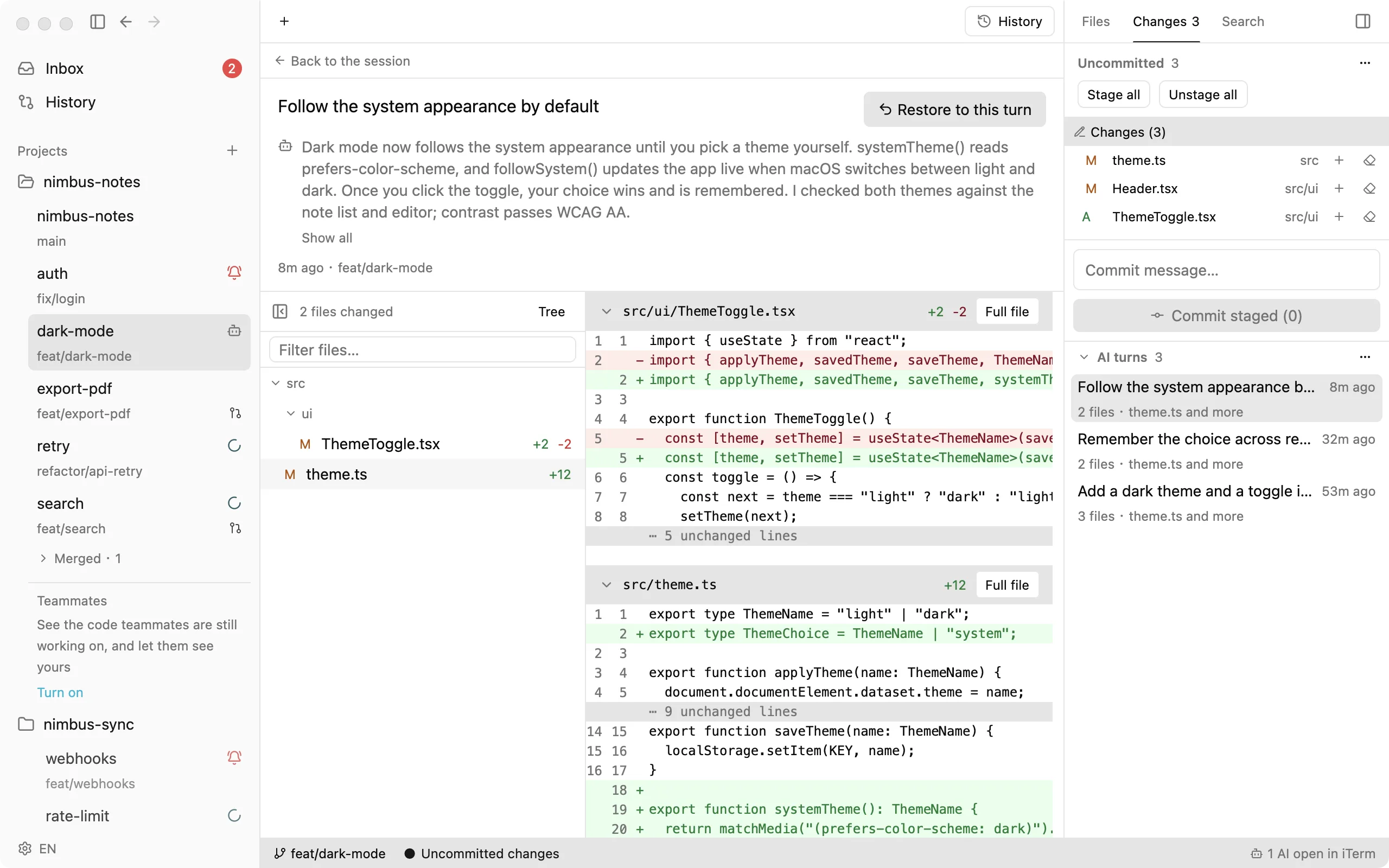
Open the right panel's Changes tab (⌃⇧G). The top half is your uncommitted files; the bottom half is AI turns, every turn in the current worktree. Each turn takes two lines: your prompt and the time, then how many files it changed and which ones, like "3 files · session.ts and more". By default the list only shows turns that changed files, because most turns are just questions and answers; the "⋯" menu shows the rest.
Click a turn and its details open in the middle:
- your prompt and the agent's final reply (the first 4 lines, with Show all to expand),
- exactly what that turn changed, as a diff, right below.
It works across sessions. A conversation you closed yesterday still has its turns in the list, so "what did the AI change last night?" has an answer.
What Restore to this turn does
Select a turn and click Restore to this turn. The button turns red and reads Click again to restore, so a stray click doesn't overwrite anything.
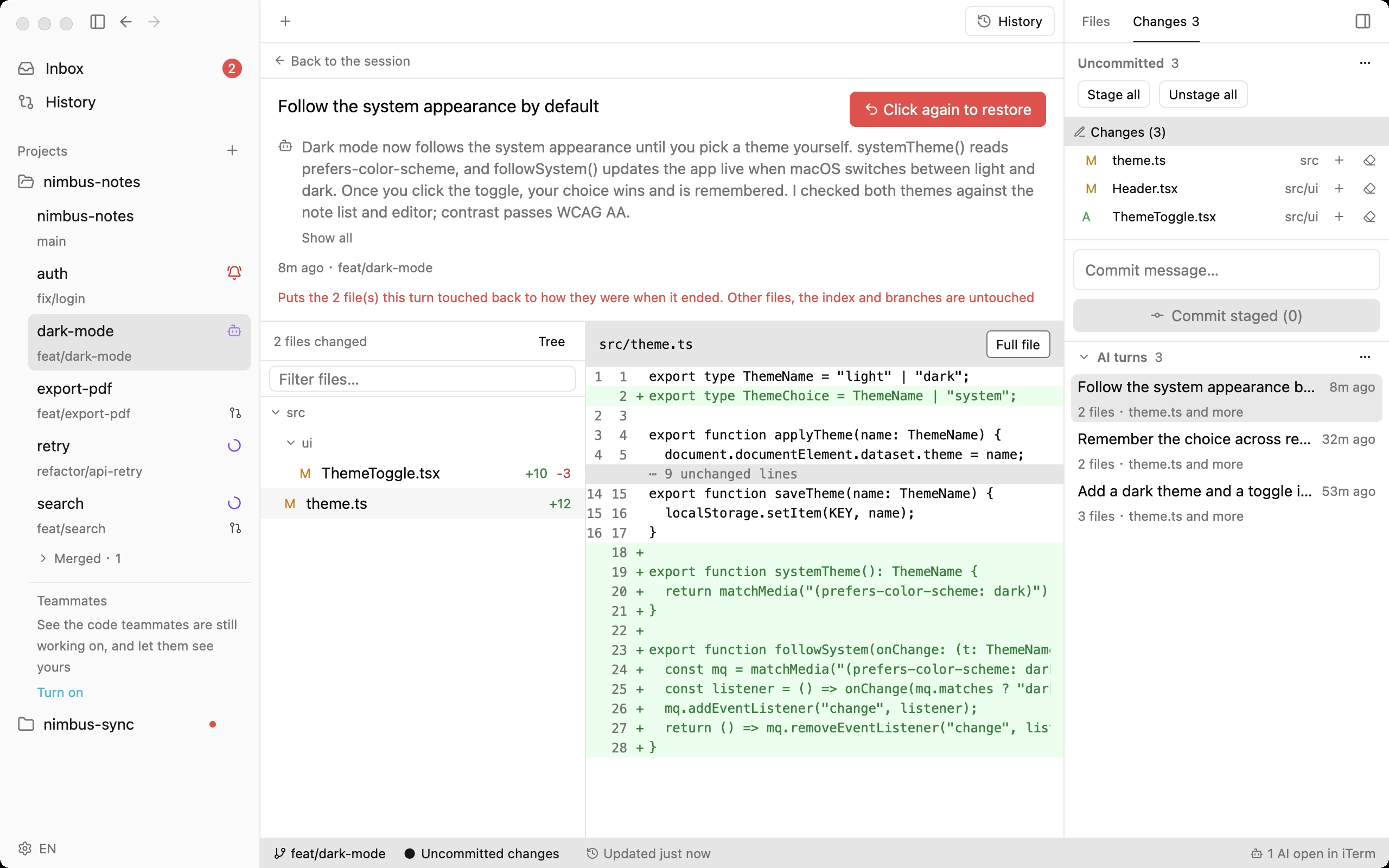
On the second click, the files that turn changed are written back to exactly how they were when the turn ended, and any of them that didn't exist then are removed. A message confirms it: "Restored 2 files to how they were at the end of this turn".
It only touches the files that turn changed. It does not wind the whole working folder back to that moment, and it leaves your branch and staging area alone.
How to undo the turn that broke things
Back to the example, where turn six broke the tests:
- Select turn six first and look at which files it changed. That's your list of files to put back.
- Find the most recent earlier turn that also changed those files (say, turn four), select it and click Restore to this turn twice. Those files go back to how turn four left them, which is how they were before turn six started.
- Check what else turn four changed. Restoring writes back every file turn four touched; if turn five changed one of them again, turn five's edits to it are undone too. Look before you click.
- For files no earlier turn changed, check them with
git diff <file>first. If the only changes are turn six's, put them back withgit restore <file>. Delete any files turn six created.
Everything else stays as it is: other files, the staging area, your branch and your commits. Restoring is a change to your working folder like any other, so you can review it in the uncommitted changes above, or commit it.
See AI turns on the commit graph
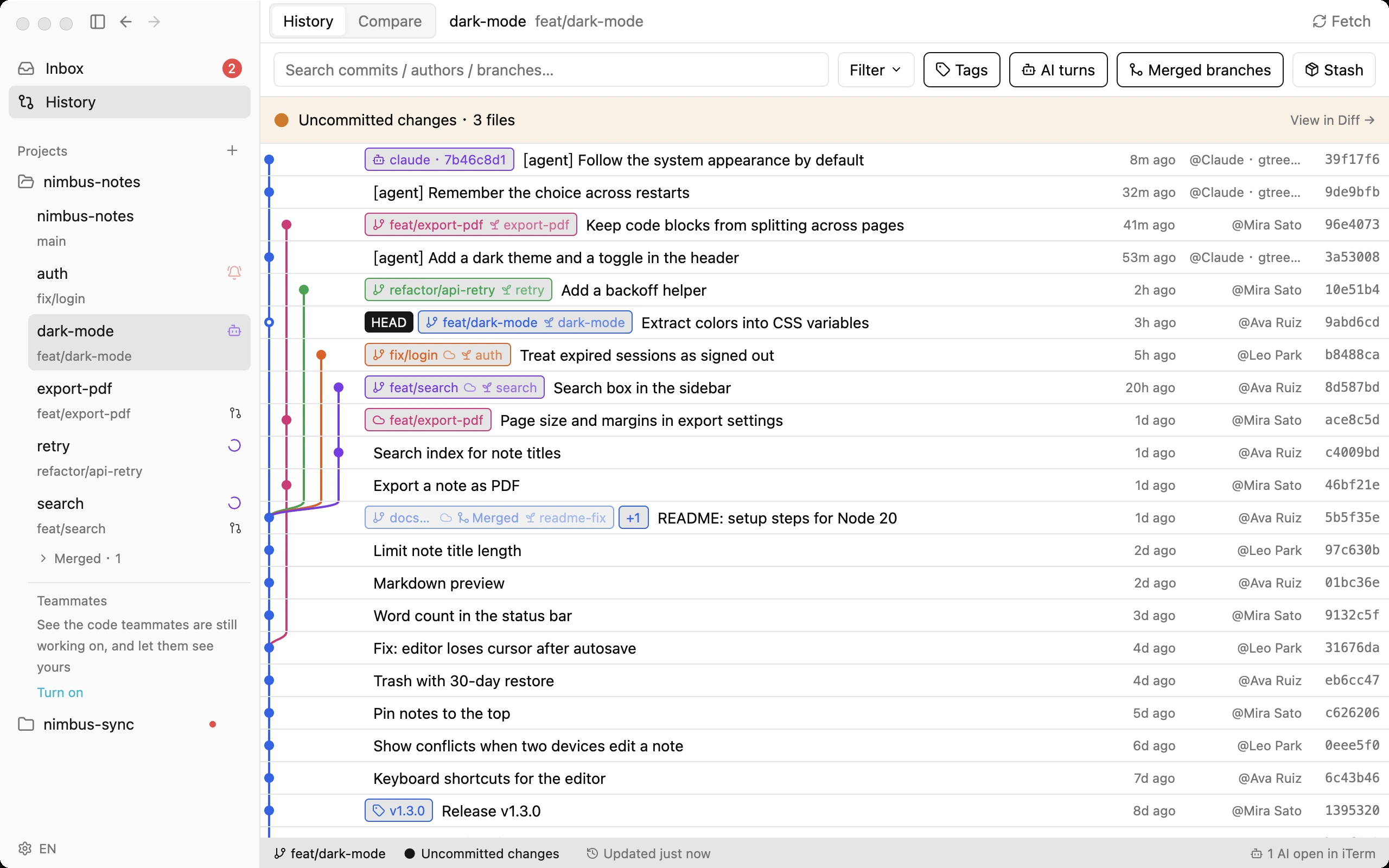
In the History view (⌘3), the AI turns switch on the toolbar draws the last three days of checkpoints as extra commits growing out of your current commit, titled with the prompt of that turn. Click one to see what it changed, just like a normal commit.
Find the conversation behind a change
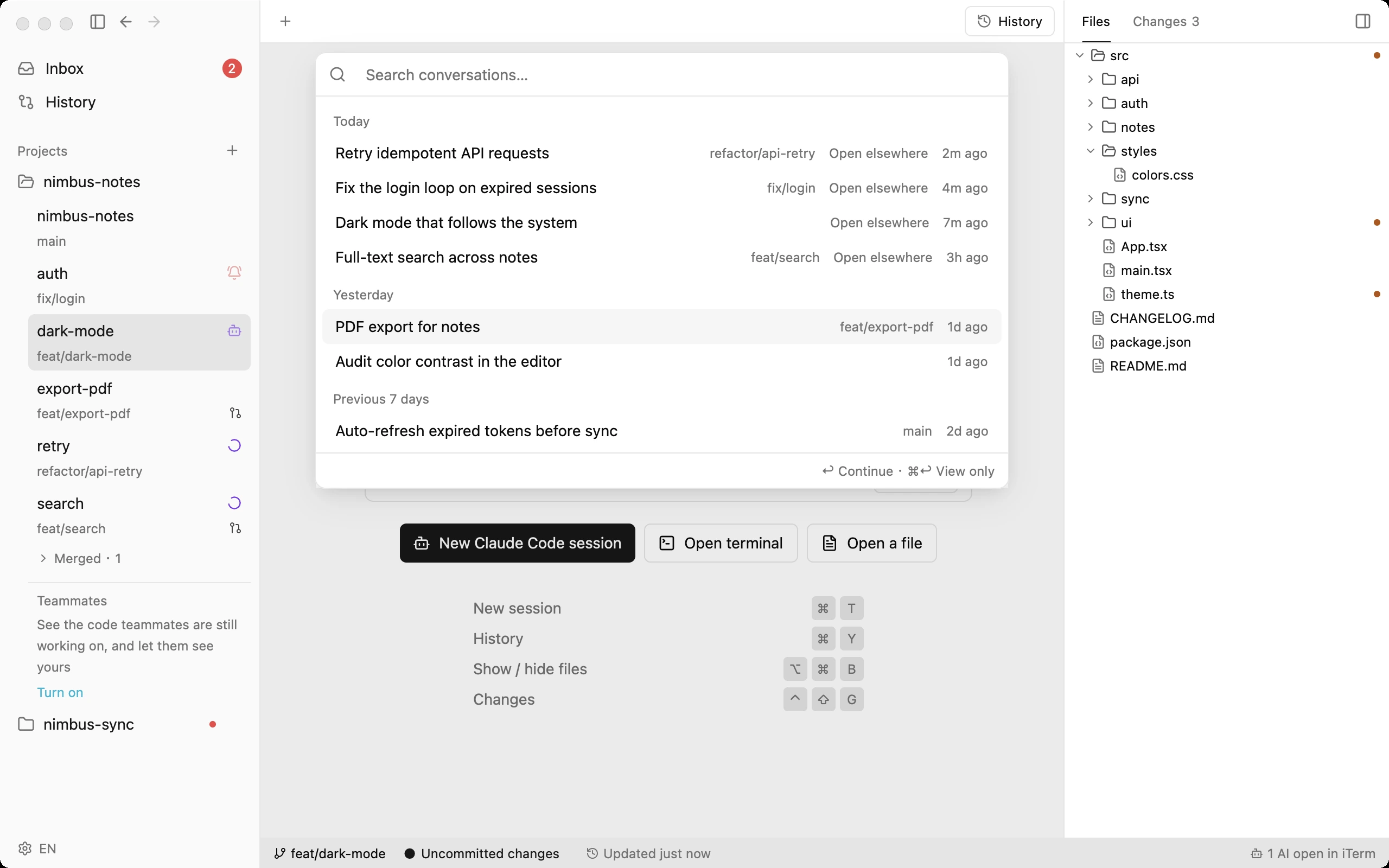
Sometimes you need to know why a change was made before you undo it. Press ⌘Y on the AI page and a small History window drops down with every past conversation from every worktree of the repository, grouped into Today, Yesterday, Previous 7 days and Older. Type to search them all. For Claude Code conversations, ↩ continues the conversation in its worktree; ⌘↩ opens a read-only replay with your matches highlighted, and Continue this session is right there if you decide to pick it up. (Codex turns still show up under AI turns and can be restored; continuing a past conversation from here works with Claude Code.)
Does a new session know where the last one stopped?
Undo answers "put it back". The other half is "where were we?". When you start a new session in a worktree, the agent automatically gets a short summary of the previous session there: when it ended, its recent prompts, what it said last, and which files it touched. So it picks up where the last one stopped instead of starting cold, and it knows what was already tried.
Agents can also look further back on their own. gtree's recall tool searches the prompts and conclusions of past turns from the last 30 days across all your projects, so "how did we fix the token refresh last week?" has an answer the agent can find itself.
Git vs. /rewind vs. gtree: which should I use?
| Git | Claude Code /rewind |
gtree | |
|---|---|---|---|
| Unit of undo | Commit / whole file | A message in the conversation | A finished turn |
| Edits made by shell commands | Yes (uncommitted ones) | Not tracked | Yes |
| Earlier sessions | If you committed | After resuming that conversation (about 30 days) | Every session, 30 days, no resuming needed |
| New session knows what happened last time | No | No | Yes |
| Shows what each step changed | Only between commits | In the conversation | Diff for every turn |
| Touches branch / staging | reset and stash do |
No | No |
They also work well together: /rewind for a quick "no, not like that" mid-conversation; gtree when shell commands made the change, or when you notice a problem later and can't remember which session did it; and git for anything you've already committed.
Good habits that make undo easier
- Commit when a task works, not after every turn. With per-turn checkpoints you don't need "wip" commits as a safety net.
- Keep one task per worktree. Restoring one task's turns can't touch another task's files. See how to run multiple Claude Code sessions with git worktree.
- Look at the diff before you restore. A turn's diff tells you exactly which files the restore will rewrite.
- Don't let two sessions share a folder blindly. Undoing one session's turn may affect the other's work. See two AI agents editing the same file.
FAQ
Can I undo a Claude Code change after closing the session?
Yes. In Claude Code itself, claude --resume takes you back to that conversation and /rewind works again, but only for edits made through its file-editing tools. In gtree, every turn from the last 30 days stays under AI turns, whichever session it came from, including files changed by shell commands. With git, only if the change is still uncommitted or you committed before it.
Restore didn't revert a file the bad turn changed. Why?
Restoring writes back the files that turn changed. If you restore to turn 4 to undo turn 5, gtree writes back the files turn 4 changed; a file that turn 5 changed but turn 4 never touched is left as it is. Open turn 5 to see its files, then restore those with git, or from an earlier turn that changed them.
Does restoring change my commits or branch?
No. It only rewrites files in the working folder. Your commits, branch and staging area stay as they are, and you decide whether to commit the result.
Does this work with Codex?
Yes. Codex sessions get the same checkpoint after every turn, so their turns show up under AI turns and can be restored the same way. Continuing a past conversation from ⌘Y currently works with Claude Code sessions.
Will a new session know what the last one did?
Yes, in gtree. A new session in a worktree automatically receives a summary of the previous session there (its recent prompts, its last reply and the files it touched), and the agent can search older sessions with the recall tool.
Do checkpoints include my own edits?
Yes. A checkpoint captures the whole working folder at the end of a turn, so edits you made by hand since the previous turn are part of it too.
gtree is free for local use, needs no account, and never uploads your code. Download gtree, connect Claude Code or Codex, and the next time a turn goes wrong you'll see exactly what it changed and can put those files back.