 gtree
gtreeHow to Run Multiple Claude Code Sessions with Git Worktree
To run several Claude Code sessions on the same repository at once, give each one its own git worktree: a separate working folder, on its own branch, that shares the same .git history. Create one with git worktree add ../myapp-fix-login -b fix-login, start claude inside it, and repeat for every task. The AIs can then edit, build and test in parallel without overwriting each other's files.
That's the whole idea. The rest of this guide covers the commands you'll actually type, the snags people hit in the first week, and how gtree takes care of the repetitive parts.
Why not just open two Claude Code sessions in the same folder?
You can, and for read-only questions it's fine. But as soon as both sessions start editing, they share one working directory with no isolation at all:
- Session A rewrites
auth.ts; session B, working from an older read of the file, changes it again. - Session A's half-finished change breaks the build, and every test session B runs now fails for reasons it can't see.
- When you finally commit, the changes from both tasks are tangled together in one diff.
Git branches alone don't solve this, because a single folder can only have one branch checked out. Worktrees do: each one is a real directory with its own checked-out branch, its own uncommitted changes and its own build output, while all of them share the same commits, branches and remotes.
How do I set up git worktrees for Claude Code?
From inside your main checkout:
# 1. Create a worktree next to the repo, on a new branch
git worktree add ../myapp-fix-login -b fix-login

# 2. Start Claude Code inside it
cd ../myapp-fix-login
claude
Open a second terminal and do the same for the next task:
git worktree add ../myapp-search -b search-box
cd ../myapp-search
claude
A few commands you'll use constantly:
| Command | What it does |
|---|---|
git worktree list |
Shows every worktree, its path, commit and branch |
git worktree add <path> -b <branch> |
New folder on a new branch |
git worktree add <path> <existing-branch> |
New folder on a branch that already exists |
git worktree remove <path> |
Deletes the folder (refuses if it has uncommitted changes, unless you add --force) |
git worktree prune |
Cleans up records of worktrees whose folders you deleted by hand |
When a task is done, merge or open a pull request from that branch as usual, then remove the worktree.
What are the gotchas with git worktree?
Most of the friction comes from the fact that a new worktree contains only tracked files:
- Dependencies aren't there.
node_modules,target/,.venvand friends are ignored by git, so each worktree needs its own install or build. Budget the disk space and the first-build time. - Local config isn't there either.
.envand other git-ignored settings must be copied or symlinked into each worktree. - One branch, one worktree. Git won't let two worktrees check out the same branch. If
git worktree addcomplains that a branch is already checked out, create a new branch instead. - Ports collide. Two dev servers started from two worktrees will fight over the same port unless you change it in one of them.
- Folders pile up. Delete a worktree folder with
rm -rfand git still remembers it until you rungit worktree prune.
None of these are dealbreakers. They're just things you have to remember every single time.
The real problem: keeping track of five terminals
Once the setup works, a different problem shows up. Five agents in five terminal tabs means:
- You don't know which one is waiting for your approval until you flip through every tab.
- You don't know which ones are done and need reviewing.
- You lose track of which worktree is on which branch and how far it is from
main. - Two of them may be editing the same file in different worktrees, and you only find out when you merge.
Terminal multiplexers like tmux help arrange the windows, but they don't know what the agent inside each window is doing. That missing layer is what gtree adds.
How gtree handles multiple Claude Code sessions
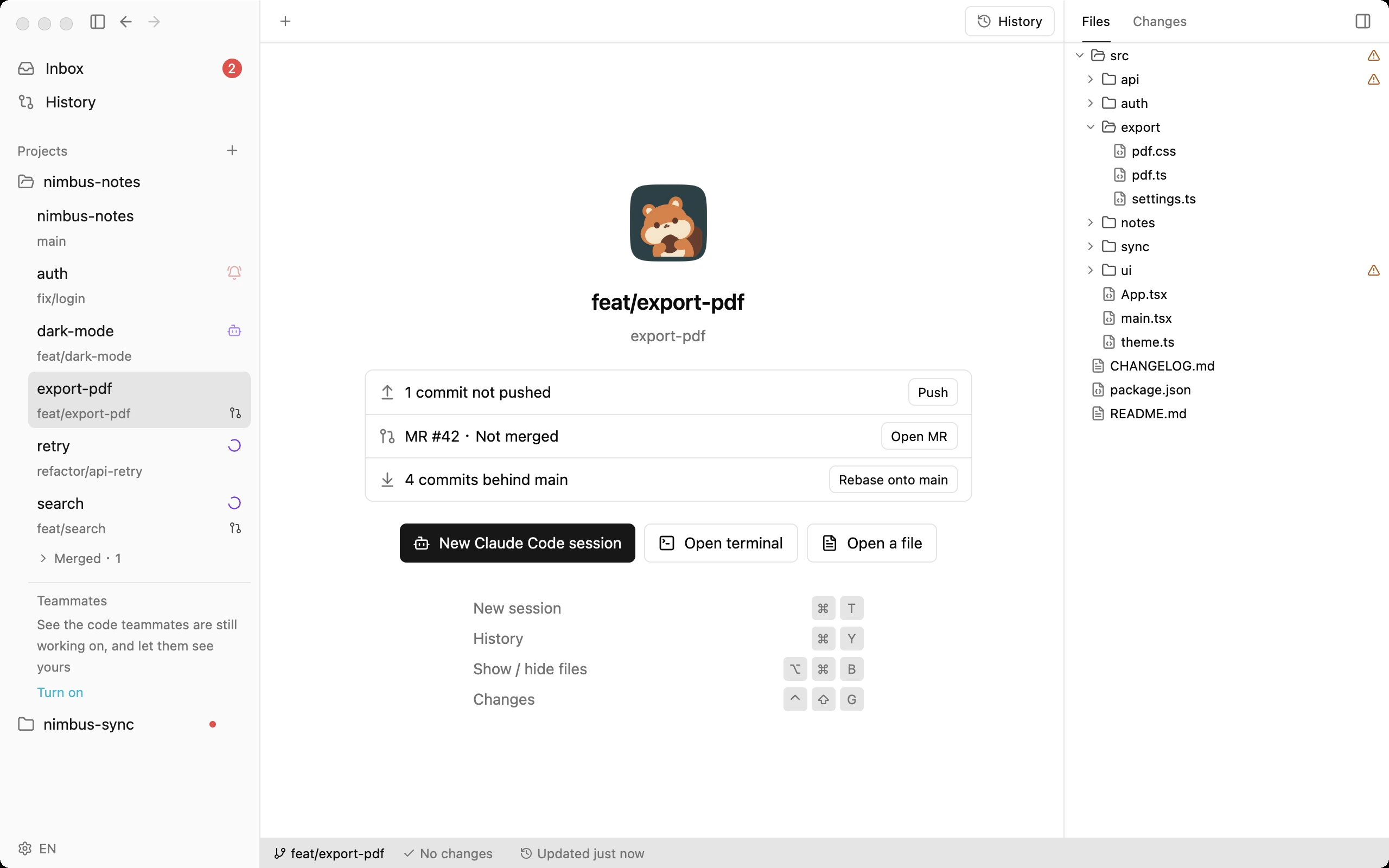
gtree is a native macOS app built around worktrees. It works with Claude Code and Codex (Claude Code was first and has the deepest integration). Open your repository and every worktree, including the ones you created on the command line, shows up in the sidebar under the project. Click one and you land on its home: the conversation if a session is open, otherwise that worktree's start page, which tells you what's next.
Creating a worktree. Right-click any worktree in the sidebar and choose New Worktree…, then type a branch name. gtree runs git worktree add for you and puts the new folder next to the repo, named <repo>-<branch>. Remove Worktree… is on the same menu, with a confirmation first. Once a branch has been merged, its start page offers Delete worktree directly.
Running an agent in it. On the start page, click New Claude Code session, or press ⌘T (if Codex is installed, you choose which one). gtree's built-in terminal runs the real agent CLI, the same Claude Code or Codex you use in iTerm, so slash commands, plan mode, permission prompts and MCP all work. You can open more than one session in the same worktree. Just clicking a worktree to look at it never starts a session on its own.
Seeing every session at a glance. Once you connect Claude Code (or Codex) in Settings, each worktree in the sidebar ends with one status marker: a purple spinner while its agent is working, a pulsing red bell when it's waiting for you. Hover for details. You don't have to read anything; you look for the red bell. More on that in the next article.
Knowing where each branch stands. The start page lists only what needs doing, one line per situation, each with its own button:
| What the start page says | Button |
|---|---|
| This branch has been merged | Delete worktree / Start a new branch |
| N files are also being changed elsewhere | See which |
| N files not committed | View changes |
| N new commits on the remote | Pull |
| N commits not pushed | Push |
| Rebased: differs from the remote copy of this branch | Push (overwrite remote) |
| MR #N · Not merged / No MR yet | Open MR / Create MR |
| N commits behind main | Rebase onto main |
When there's nothing to do, it says the worktree is up to date. In the sidebar, each branch also shows its merge request status: an open icon while the MR is open, a faded merge icon once it's merged. That comes from the glab or gh you're already signed in to, so it works with GitHub and GitLab, self-hosted included. The full Git menu (commit, pull, push, rebase, switch branch and more) is on the right-click menu, and everything that writes runs through your own git, so your SSH keys and hooks keep working. For the big picture, History (⌘3) draws every branch as a lane, labeled with the worktree it's checked out in.
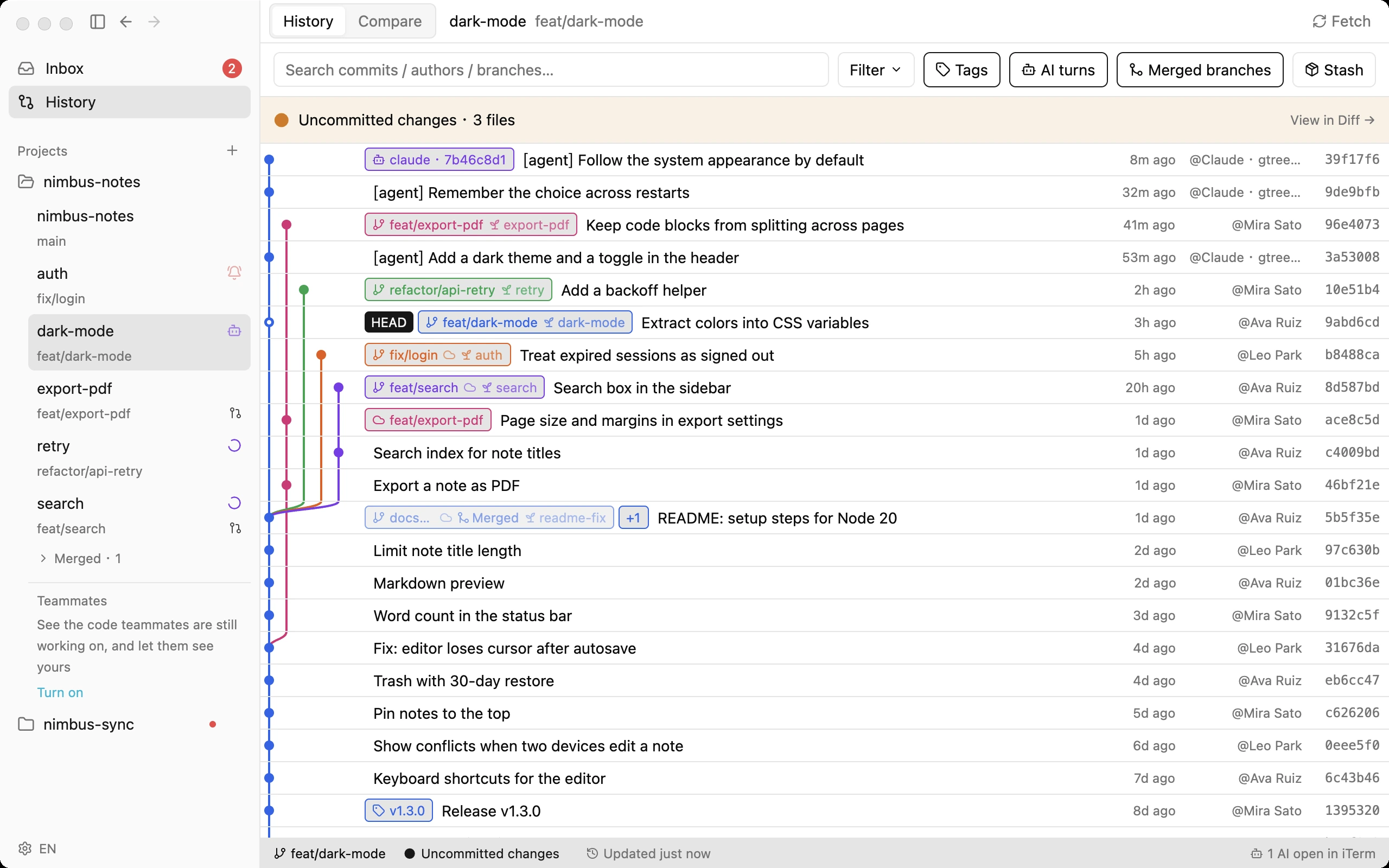
Reviewing what changed. View changes on the start page opens the diff right in the middle: changed files on the left, contents on the right. To review a whole branch before merging, History › Compare opens on "main → current worktree" by default, no git diff needed.
Collision warnings. If two worktrees change the same file, that worktree's row in the sidebar gets an amber △ (when no session status icon is showing there), and its start page always says how many files are also being changed elsewhere, with See which to list them. Overlaps where neither side has committed yet also show up in the Inbox under Worth a look. Inside a single worktree it goes further: when two agents are about to edit the same file, they're told about each other and can leave each other a message to agree who goes first. Two AI agents, one file covers how that works.
Manual setup vs. gtree
| Terminal + git | gtree | |
|---|---|---|
| Create a worktree | git worktree add ../x -b x |
Right-click → New Worktree… |
| Start an agent | cd + claude in a new tab |
Start page → New session (⌘T) |
| Who's waiting for you? | Check every tab | Bell in the sidebar, plus a notification |
| Branch status | git status / git log per folder |
Start page + sidebar marker |
| Same file edited twice | Found at merge time | Marked as soon as both have changed it |
A simple workflow that scales to five sessions
- Keep
main(or your default branch) checked out in the main folder and don't let an AI work there. - One task, one worktree, one branch. Name the branch after the task.
- Give each agent a tightly scoped prompt that names the files or area it owns.
- Review each branch against
mainbefore merging, then remove the worktree. - Merge often. The longer two branches live, the more they drift.
FAQ
How many Claude Code sessions can I run at once?
There's no fixed limit from git. In practice you're limited by your attention, your machine (each worktree may need its own dependencies and build) and your plan's usage limits.
What's the difference between a git worktree and a branch?
A branch is a line of commits; a worktree is a folder with a branch checked out. One folder can hold only one branch at a time. Worktrees give you several folders, each on its own branch, all sharing the same history.
Do worktrees use a lot of disk space?
The git history is shared, so a worktree only costs the size of the checked-out files plus whatever you install or build in it. Dependency folders like node_modules are usually the biggest part.
Do I need gtree to use worktrees with Claude Code?
No. Everything above works with plain git and a terminal. gtree just removes the bookkeeping: creating worktrees, finding the session that's waiting, and spotting overlapping edits.
Does gtree replace Claude Code?
No. gtree runs the real agent CLI (Claude Code or Codex) inside its terminal and reads its status. Your Claude Code setup, settings and subscription stay exactly as they are.
gtree is free for local use, needs no sign-up, and never uploads your code. Download it here and open the repository you're already working in. Your existing worktrees will be waiting in the sidebar.
Updated for gtree 0.3.14 (Oct 2026).