gtree uses about half as much CPU while agents are working. The spinning and blinking agent status icons now redraw about 12 times a second instead of at your screen's refresh rate. In our test with three agents working and one waiting, gtree went from 8.6% to 4.4% of one core. With nothing running it stays under 1%.
What gtree tells your agents now follows the app's language: Chinese when gtree is in Chinese, English otherwise. This covers the heads-up when another session in the same worktree just changed a file, notes left by other sessions, the "who's working on what" summary at the start of a session, and the descriptions of gtree's MCP tools.
The "Claude Code isn't connected" notice on the start page is now a card: the explanation gets a full line and the buttons sit below it.
The welcome guide's text matches the current app: agents in the same worktree check with each other before editing the same file, "AI turns" and ⌘Y replace the timeline, and the Inbox replaces the collaboration view.
Status tooltips now start with "AI ·" instead of "Claude ·", since they cover Codex sessions too.
In an empty repository, the file tree's loading placeholder kept animating and never went away.
With the app in English or Japanese, tool steps in a conversation replayed from History (such as "Edit src/theme.ts") were shown in Chinese.
On the start page, the list of files also changed elsewhere could squeeze the file path down to nothing. The worktrees involved now go on a second line.
The Inbox no longer points to the Workbench, which no longer exists. It now just says how many more there are.
Settings no longer mention the Workbench or the timeline when describing Claude Code hooks. The Team plan description no longer lists Teammates, which is already in the free version, and now says the relay only forwards sync messages and doesn't store your data.
Quit gtree and open it again: the projects you had open, the one you were on, and the worktree selected in each are all still there. No need to add your projects again.
"View changes" on the start page, and clicking a file under Changes on the right, now open the diff in the middle: changed files on the left, the contents on the right, new files included. Staging and unstaging use only the + / − at the end of the row, so clicking a file no longer stages it.
"Open in editor" on the start page is now "Open a file": the right panel switches to the file tree and the ⌘P file finder opens. The file you pick opens in gtree, ready to edit and save.
When a branch has been rebased and no longer matches its remote copy, the start page shows one line, "Rebased: differs from the remote copy of this branch", with a "Push (overwrite remote)" button that asks first, instead of offering both Pull and Push. It doesn't appear if someone else has pushed new changes to that branch.
A long reply in a turn's details shows 4 lines at first and can be expanded, so the changes below stay on screen.
Projects in the sidebar, "Merged", "AI temporary workspaces", "AI turns", and the start page's list of files changed elsewhere now open and close with an animation, with rows appearing one after another. The "AI turns" heading stays in place when you collapse it.
The Files and Changes tabs in the right panel have a new look. The selected tab has darker text and an underline, so it's clear you can switch. Changes shows how many files are uncommitted, and Files no longer shows the repository's total file count.
The Changes tab has a new layout. When the working tree is clean, the top part shrinks to a single line that reads "Uncommitted" and "Clean", leaving the space for AI turns below. "Discard all" moved into the "⋯" menu.
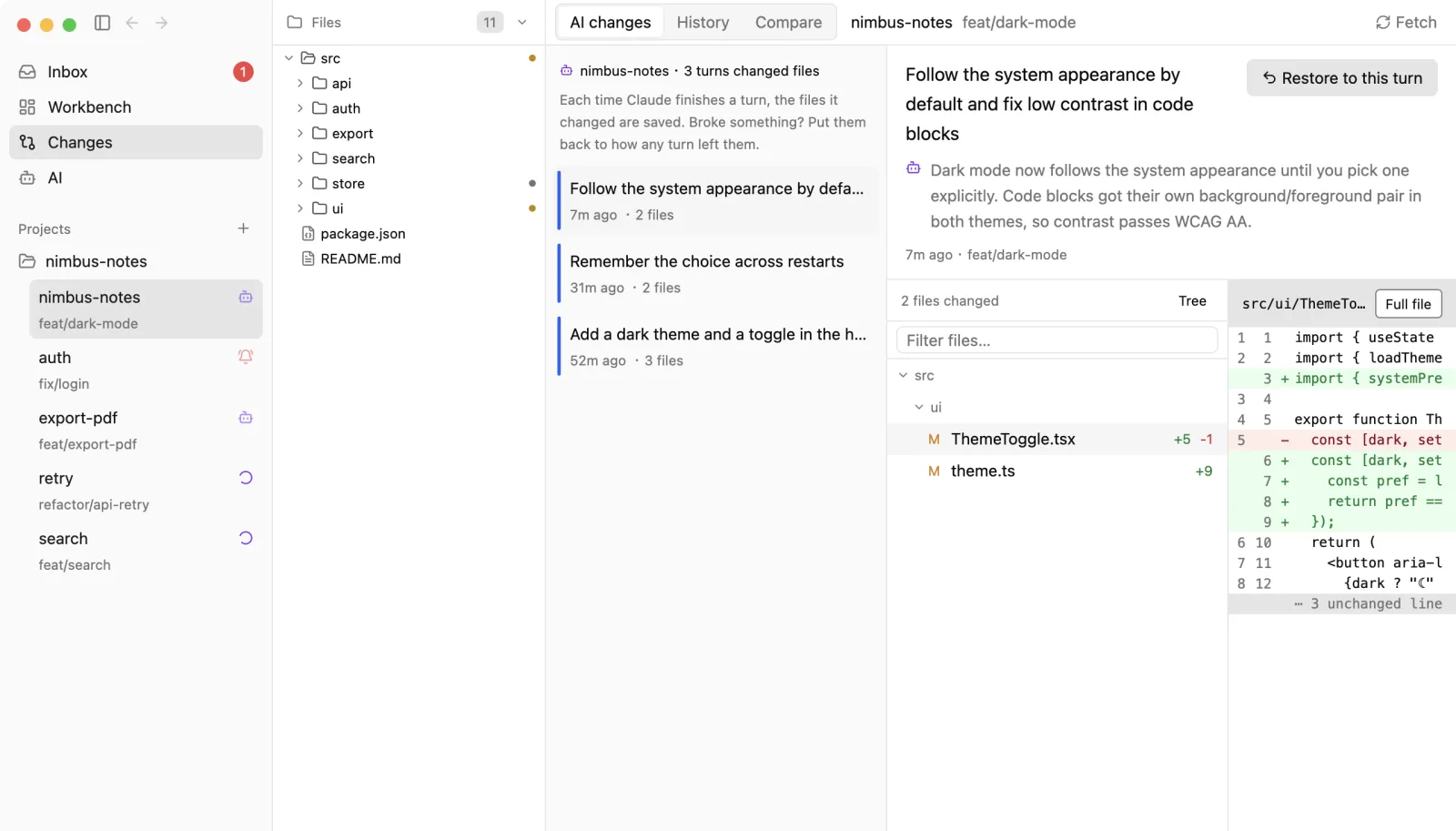
Each AI turn now takes two lines: your prompt and the time, then how many files changed and which ones (like "3 files · root.rs and more"). The colored bar on the left is gone, and a line now separates one session from the next. "Show turns without file changes" and "Legacy snapshots" moved into the "⋯" menu.
You can collapse AI turns. Click the heading and the section shrinks to one line at the bottom of the panel. It stays collapsed the next time you open gtree.
The commit message box grows as you type, up to 4 lines, then scrolls. You can read a longer message in full, and the file list above stays visible.
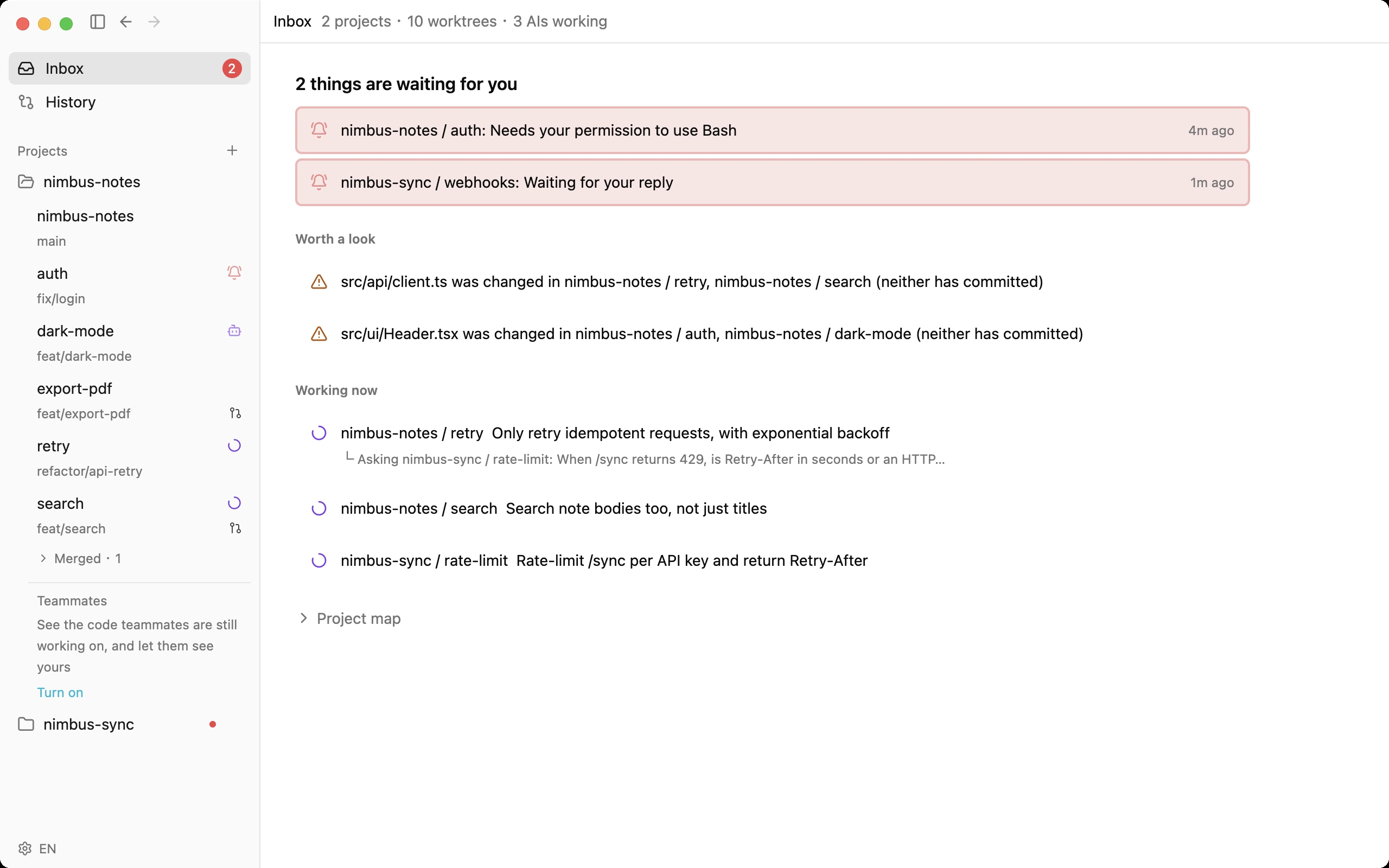
In the Inbox, the spinner for an AI at work now spins and the bell for one waiting on you now pulses, just like in the sidebar.
New layout. The sidebar now holds just Inbox, History, and your projects. Click a line in a project to open its home: the conversation if a session is open, otherwise the line's start page. The Workbench is gone. Shortcuts: ⌘1 Inbox, ⌘2 Current Worktree, ⌘3 History.
The start page shows where the line stands, with a button for each situation: already merged (Delete worktree / Start a new branch), the same file is being changed elsewhere (See which), uncommitted changes (View changes), new commits on the remote (Pull), commits not pushed yet (Push), an open MR (Open MR), no MR yet (Create MR), behind the main branch (rebase). Below that: start Claude Code or Codex, open a terminal, or open in your editor.
The right panel now has two tabs, Files and Changes (⌥⌘B toggles it, ⇧⌘E / ⌃⇧G switch tabs). Changes lists your uncommitted files (stage and commit there) and each AI turn. Click a turn to see what it changed in the middle. The old "Changes" view is now called History.
The sidebar shows MR status after each branch: a pull request icon while it's open, a faded merge icon once it's merged. Hover to see the number, title and link, and click to open it in your browser. It uses the glab or gh you're already signed in to, and works with GitLab (including self-hosted) and GitHub. If neither is installed, nothing is shown.
Each line in the sidebar ends with a single marker: the AI session's status (working, waiting for you, etc.), the same file being changed elsewhere (amber △), or how many lines are uncommitted (like "+24 −3"). Hover for details.
Lines whose branch is merged and that you're not using fold into "Merged · N" at the bottom of the sidebar. Branches squash-merged on the platform count too, even when git can't tell.
Right-click a line in the sidebar for the Git menu (push, pull, commit, switch branch, delete worktree and more). With many worktrees, the project name stays pinned at the top so you can collapse it anytime.
Click a line whose AI is working or waiting for you to open that conversation, from any page.
The AI page no longer starts Claude Code on its own, so just looking doesn't add a session. Click "New Claude Code session" on the start page or press ⌘T to start one (you can choose if Codex is installed).
Past conversations now open in a small window at the top of the AI page (⌘Y). Type to search, ↩ to continue, ⌘↩ to just read. Clicking a conversation in the list continues it too.
Closing a tab with Claude Code running (⌘W) asks first. You can check "Don't ask again" and turn it back on in Settings.
The "done, waiting for your reply" bell clears as soon as you switch to that terminal tab. You no longer have to send a message.
Clicking an item in the Inbox switches to the session tab it belongs to, and the keyboard selection no longer jumps to another row when the list refreshes.
Clicking title bar buttons quickly no longer zooms the window.
Long URLs wrapped onto two lines in the terminal now open with ⌘-click.
The Workbench is now one row per worktree, grouped by urgency. What needs you (waiting for you, merge conflicts) comes first; worktrees with no changes and no AI at work, or whose branch is merged, fold away. Each row shows the full branch name, then the worktree name and what changed. Buttons appear on hover.
When two worktrees change the same file, it's noted on the row (click for the file list) instead of a permanent orange banner.
Status colors in the Workbench, status bar, file tree and search now mean just four things: red needs you, amber is risky, purple is an agent at work, green is staged.
With Claude Code or Codex connected, an agent gets a list of worktrees it can reuse at the start of a session (and again when you mention worktrees), so it doesn't have to create a new one.
Inbox is rebuilt: click a row to jump to that session, or use ↑↓, ↩, and ⌫ to dismiss.
The "AI activity" column on the right of Inbox is gone. Questions agents are asking each other, and messages they left, now appear under the row they belong to. "Worth a look" also shows an agent waiting too long for another's answer, a message that hasn't been delivered, and an answer to a question you asked (click to expand it in place).
Inbox's list and the Project map now scroll separately. Drag the map with two fingers, pinch to zoom, and double-click empty space to fit it in the window.
Find in all files (⌘⇧F) is redesigned: results appear as you type, grouped by file with matches highlighted. Match case, match whole words, search only files with uncommitted changes, or narrow the files with patterns like *.rs !tests.
Built-in terminal: ⌘-click a link to open it, ⌘← / ⌘→ jump to the start / end of the line, ⌥← / ⌥→ move by word, and dragging a file in from Finder types its path. Claude Code recognizes images dragged in this way.
Opening a file now expands the file tree to it.
History on the AI page is grouped into Today, Yesterday, Previous 7 days and Older, and the headings stay pinned as you scroll.
When gtree isn't running (after ⌘Q, for example), using Claude Code or Codex in another terminal no longer triggers gtree notifications.
Continue this session now switches to its terminal tab if the session is already open in gtree.
Search: ↩ now opens the selected result, results in paths with Chinese, Japanese or other non-English characters open again, and an earlier search no longer replaces newer results.
Session titles with line breaks no longer break the History list.
The Project map is no longer stretched and cut off on the right, and a project named "/" no longer appears.
Files you open can now be edited. ⌘S saves, and switching to another file saves automatically.
If a file was changed elsewhere (by an agent, say) after you opened it, saving won't silently overwrite it: you choose to reload it (discarding your edits) or overwrite anyway. Auto-save on switching files never overwrites in that case; it tells you which file wasn't saved.
Connect Codex: click Connect Codex in Settings and Codex sessions work like Claude Code ones. You can see what each one is doing and when it's waiting for you, waiting sessions show up in Inbox, and every turn is saved so you can roll it back. No need to approve anything inside Codex.
The + in the AI view can open a Codex session next to your Claude Code ones in the built-in terminal, and History now finds and replays Codex conversations too.
Agents in the same worktree, Claude Code or Codex, now know about each other: when one changes a file the other also changed, the other is told automatically, and before touching the same place they leave each other a message to agree who goes first. Whoever finishes first tells the other.
New Teammates, off by default and turned on per repository: in repositories where someone else has committed recently, a Teammates section appears under the project in the sidebar. Click Turn on, then Start sharing, and you and your teammates see each other's work in progress, uncommitted changes included, through your team's own git repository. Click a branch to see their changes.
When you and a teammate change the same place, your AI stops and asks you before editing, and Inbox flags it with a See their changes button.
Your AI can leave a teammate a message. It reaches their AI only after they have read it and clicked Hand to my AI, and the reply comes back to the AI that asked.
Everything between teammates is signed and messages can only be read by their recipient, so no one else with access to the repository can pose as a teammate. If a teammate's identity changes, nothing from them is accepted until you confirm it's really them.
Clicking "AI open in another terminal" in the status bar now lists those sessions: what was asked, how long ago and what it's doing. Click one to switch to its terminal, or, if gtree can't tell where it runs, to replay the conversation.
Right-click in the file tree to Open in Browser, Open with Default App, Reveal in Finder, Open in Terminal (gtree's built-in terminal) or Copy Path.
Paging through the welcome tour no longer flashes other screens, and its last page now shows how to connect Claude Code.
When long commands run in parallel in one worktree, files are no longer credited to the wrong session, and "0 failed" in test output is no longer taken for an error.
The Claude Code connection text no longer mentions error or stuck states the app never shows.
Inbox is the new first screen and answers one question: does anything need you right now? AIs waiting for you come first, sorted by how long they've waited, followed by things worth a look, such as two branches changing the same file.
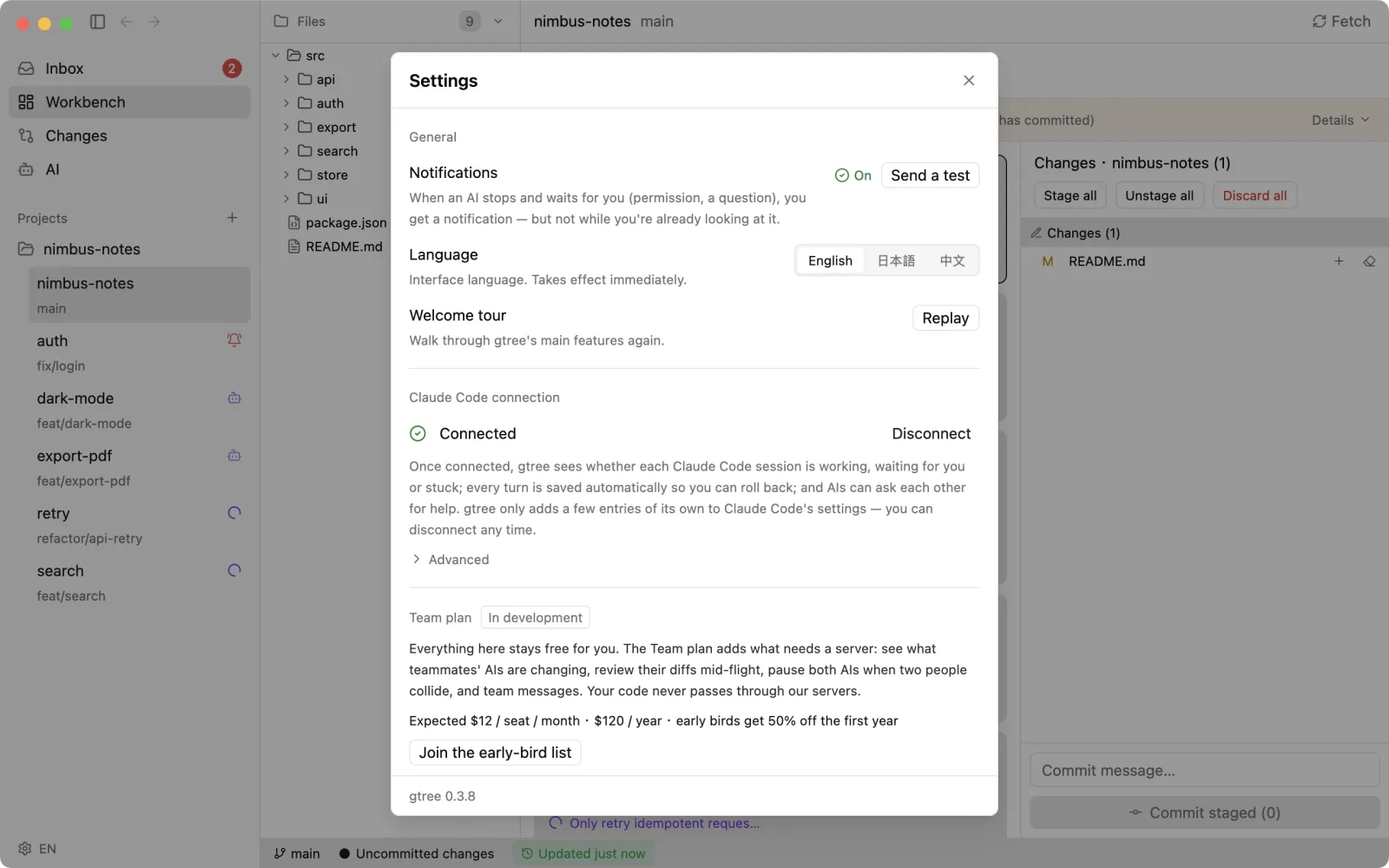
Get a macOS notification when an AI stops to wait for you, whether it needs permission or has finished and is waiting for your reply; click it to jump to that session. The Dock icon shows how many things are waiting.
When two Claude Code sessions work in the same worktree, an AI is warned before it edits a file the other just changed, so they don't overwrite each other.
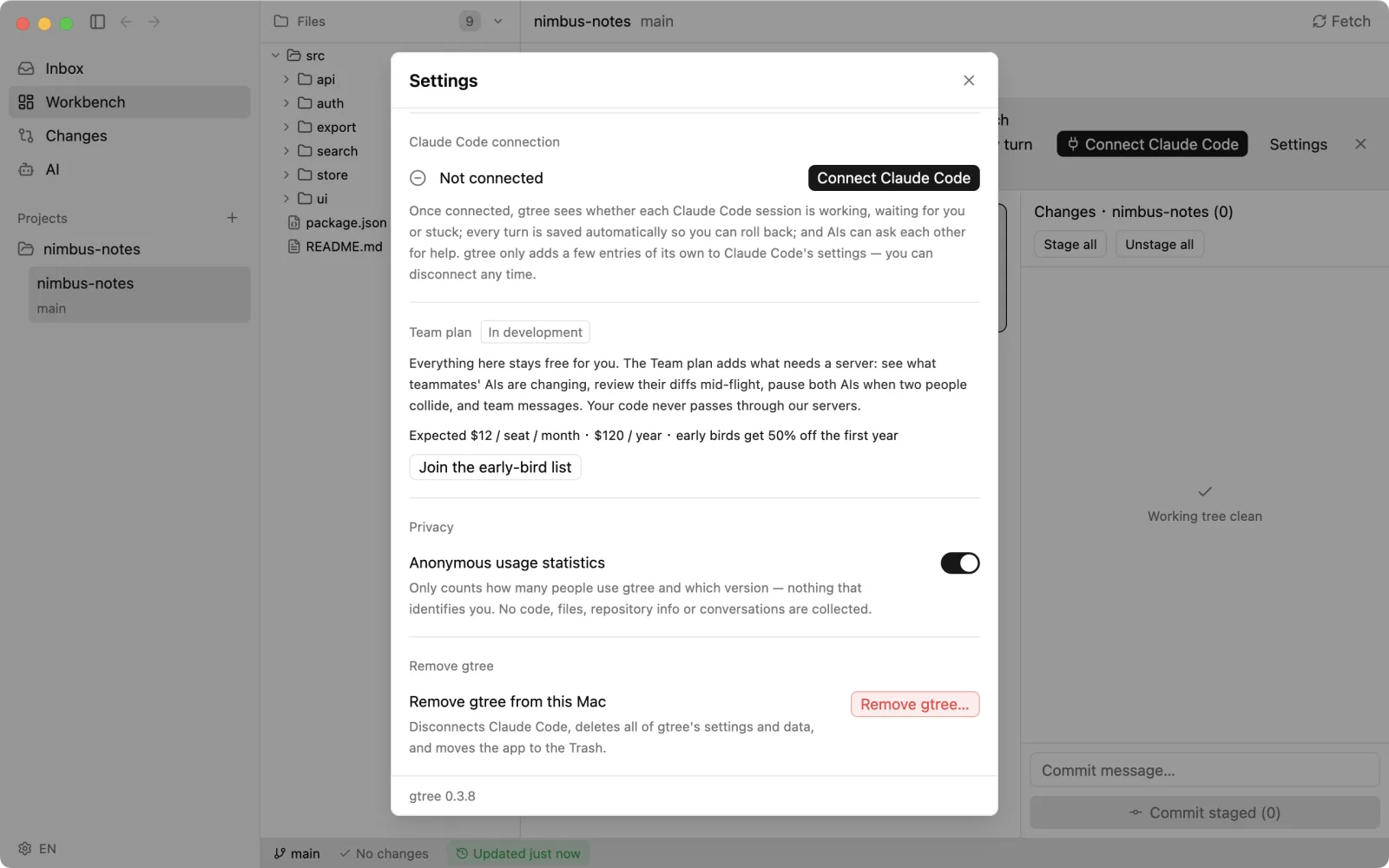
Remove gtree from this Mac right from Settings: it disconnects Claude Code, deletes gtree's data (or keeps it if you plan to reinstall) and moves the app to the Trash.
Navigation is down from seven items to four: Inbox, Workbench, Changes and AI, on ⌘1–⌘4. Changes holds AI changes, History and Compare.
Connecting Claude Code takes one click from the welcome tour, the Workbench banner or the empty AI changes page, and asks for notification permission at the same time. No Terminal commands.
Compare opens with something to show: the main branch versus your current worktree.
Repositories with hundreds of branches no longer slow your whole Mac down.
Closing a terminal tab now ends the Claude running inside it, and several Claude tabs in one worktree no longer overwrite each other's status.
Updating and connecting Claude Code no longer fail when gtree runs straight from your Downloads folder, and gtree offers to move itself to Applications in one click.
Moving gtree.app to another folder no longer quietly breaks its connection to Claude Code; existing connections switch over automatically on first launch.
New installs are now counted in anonymous usage statistics on their first day — still only after you've seen the notice, and you can turn statistics off in Settings.
Opening gtree from a .zip downloaded in a browser no longer reports “gtree is damaged and can't be opened”: the app is now fully signed, so macOS only asks you to allow it once (System Settings → Privacy & Security → Open Anyway).
Settings has a new Claude Code integration section: install in one click, see in plain words why it helps and what it changes, pick the install folder, review and switch off each hook, or uninstall.
The Workbench shows a banner when the Claude Code integration isn't installed or needs an update, linking straight to Settings.
Drag AI tabs to reorder them; the tab bar scrolls when there are more tabs than fit.
Settings previews the upcoming Team plan, with expected pricing and an early-bird list.
The interface is now available in English, Japanese and Simplified Chinese; it follows your macOS language and can be switched in Settings, taking effect immediately.
A gear button at the bottom-left of the sidebar opens Settings and shows the current language.
New users get a six-page welcome tour on first launch; replay it any time from Settings → General.
Timeline replaces Snapshots: after each Claude Code turn, gtree records your prompt, the reply and the files that changed, so you can review each turn's diff and restore the files that turn changed without touching your branch or staging area.
New Claude Code sessions start knowing where the last session in the same worktree left off: what was asked, the final reply and which files changed.
The AI can look up earlier turns by itself, including turns from your other projects.
The commit graph can show how each AI turn ended, as a branch growing from your current commit; show or hide it from the toolbar.
The Network view opens with a card for each active AI, showing what it's working on and what it did last turn, with the ones waiting for you first.
“Take a look” jumps straight to the Claude working in a worktree: its AI tab if it runs in gtree, or a read-only replay if it runs in your own terminal.
Downloads and updates go through gtree's own download server, falling back to GitHub automatically if it can't be reached.
gtree now collects anonymous usage statistics and tells you on first launch before anything is sent; turn them off from that notice or with GTREE_NO_TELEMETRY=1.
 gtree
gtree